
Stream It. Record It. Keep It.
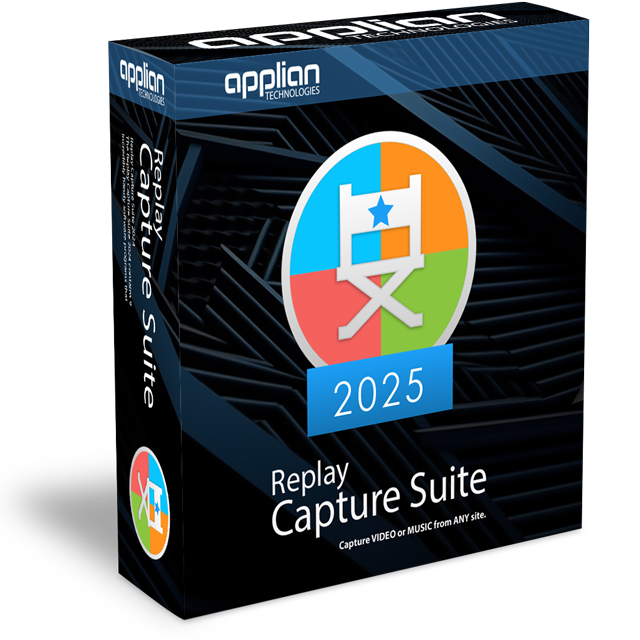
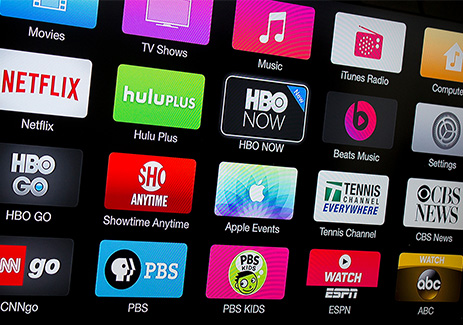
Download the highest quality video with Replay Media Catcher. Download streaming video and audio files directly from your PC. Works great for music too. Rated #1 by Top Ten Reviews. Learn more
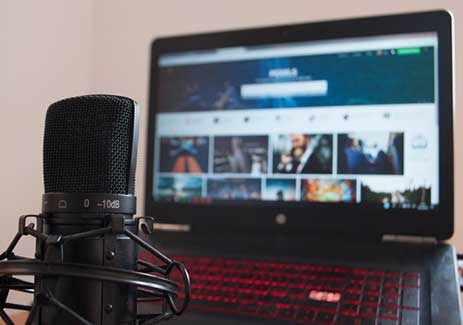
Replay Music records streaming audio from ANY site or PC program, and adds song info, art and lyrics automatically. Capture every second of your streaming music with flawless high quality. Works like magic. Learn more
 Windows only
Replay Radio is the best way to enjoy all your favorite radio shows and stations. Automatically records on a schedule. Just pick a show and listen to your audio recordings on-demand from your device time and time again. Learn more
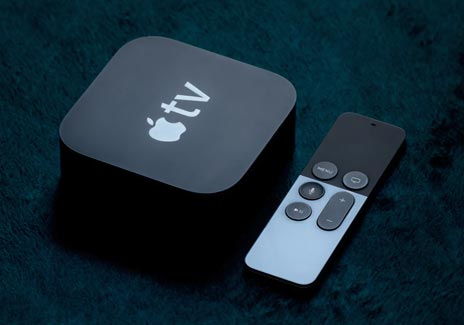
Replay Converter is the best way to convert video and audio. Convert many video formats. Easily export files onto AppleTV, iPad, iPhone, or convert them into a format that is compatible with your media player. Learn more
 Windows only
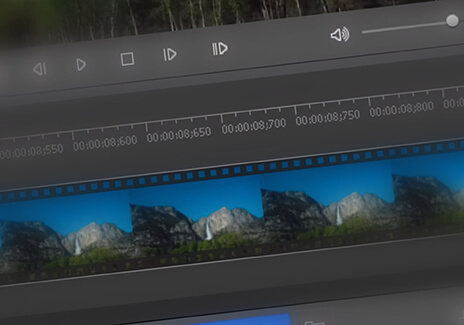
Replay Media Splitter is a really easy way to extract or remove portions of audio and video files. Once it's installed, you'll be slicing and dicing media files in minutes. Learn more
 Windows only
YTV Clone lets you easily transform your PC into a multi-viewing entertainment center. It's the best app for those who don't want to miss a live event or show ever again! Learn more
 Windows only
Video Padlock is the most convenient way to securely lock video files on your PC. Simply choose video files to encrypt, and they become available only in Video Padlock, protected by a master password you enter once at the start of each session. Learn more
 Windows only
Give your slow Internet connection the speed and power you deserve! With NetOptimizer™, you’ll finally get what you’re paying for and enjoy the Internet at maximum available speeds as promised by your ISP. Learn more

Replay Video Capture is the ultimate webcam recorder. If you can see it, you can capture it in super-high quality. It’s the only software that lets you record live streaming video from any website. Learn more
 Windows only
Meeting Recorder Plus is a powerful online meeting recorder. Record streaming video or anything else playing on your screen, from any video source, including video conferencing calls, webinars, interviews, business meetings and more! Learn more


Not sure which product is right for you? Start with our product comparison chart. Simply input the name of a site you would like to record online from, and we'll recommend the best product for your needs. See More

Sign up for our newsletter to receive regular updates regarding your favorite program, tricks for recording video and audio and other fascinating tech news. Never skip a beat on the latest Applian news, simply add your email to the list! See More

Watching a video is a great way to learn how to use our products. As big proponents of media, it’s no surprise that our team has produced lots of professional step-by-step videos to help you hit the ground running. Come enjoy our ever-growing video library. See More

If you want new features and bug fixes, you need to make sure the right updates are installed. It just takes a few minutes to update your software – so don’t delay – keep everything running smoothly and securely by downloading the newest versions today. See More
In the world of audio recordings, the choice of file format can significantly impact the quality and usability of your sound files. With a myriad of options available, ranging from lossless to lossy formats and specialized codecs, understanding the differences and benefits of each is crucial for ensuring optimal results. In this blog post, we... Read more »
The post What are the Best File Formats for Audio Recordings first appeared on Applian Technologies Blog.

In today’s digital age, videos have become an integral part of our lives. Whether it’s for social media, professional editing, streaming, or offline playback, choosing the right video file format is crucial. With so many options available, it can be overwhelming to determine which format is best for your specific needs. That’s why we’ve created... Read more »
The post The Ultimate Guide: Choosing the Best Video File Formats for Any Scenario first appeared on Applian Technologies Blog.

With Thanksgiving just around the corner, it’s the perfect time to gather your loved ones, indulge in delicious food, and cozy up for a movie marathon. And what better way to celebrate the holiday than with a selection of the best Thanksgiving movies to stream in 2023? Whether you’re in the mood for classic films... Read more »
The post 5 Best Thanksgiving Movies to Stream in 2023 first appeared on Applian Technologies Blog.

YouTube Livestream has become a popular way for content creators to engage with their audience in real-time. Whether it’s a live concert, a gaming session, a tutorial, or a webinar, YouTube Livestream allows viewers to experience events as they happen. However, what if you want to save these livestreams for later viewing or offline use?... Read more »
The post How to Download a YouTube Livestream first appeared on Applian Technologies Blog.

Halloween is just around the corner, and what better way to get into the spooky spirit than by watching some bone-chilling movies? With the rise of streaming platforms like Netflix, it has become easier than ever to find a wide variety of Halloween-themed films to enjoy from the comfort of your own home. In this... Read more »
The post Best 5 Halloween Movies on Netflix first appeared on Applian Technologies Blog.